Organization settings
Set your organization’s defaults — its name and contact details, the default loan period, who can see caregiver records, the waiver wording, event types, and more. Only Org Admins can open organization settings, and a few fields (organization name, contact email, and owner email) can only be changed by the organization owner.
General
The General section holds the organization’s identity and its day-to-day defaults. Choose Save settings at the bottom of the section to apply changes — a “Settings saved” banner confirms it.
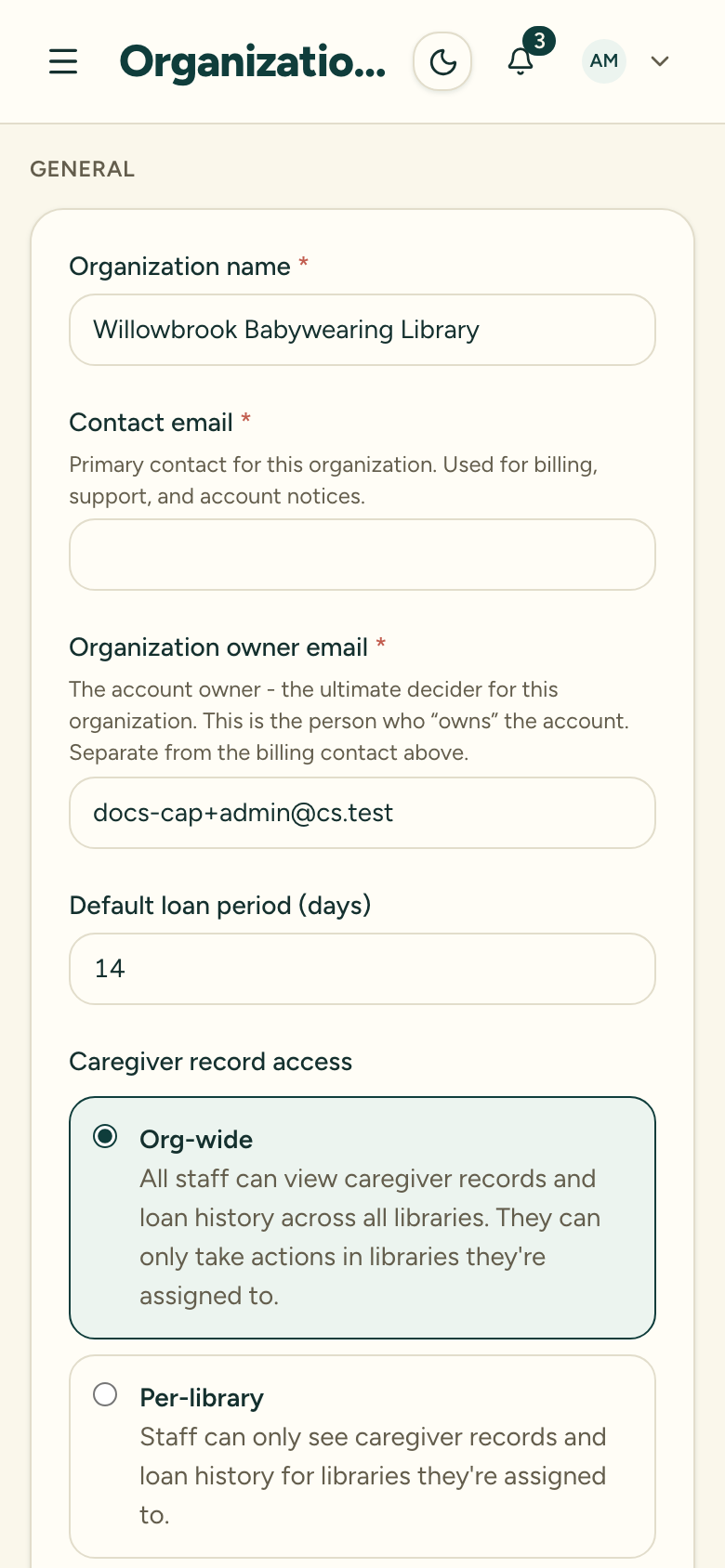
Organization name
The name shown throughout the app and on emails your organization sends. Only the organization owner can change it — other Org Admins see it read-only. Renaming doesn’t change your organization’s web address (the URL slug stays the same).
Contact email
The primary contact for the organization, used for billing, support, and account notices. Owner-only.
Organization owner email
The account owner — the ultimate decider for the organization, separate from the contact email above. Owner-only, and it can’t be left blank.
Default loan period (days)
The org-wide fallback loan length. It pre-fills the due date whenever a carrier is checked out — including in Meetup Mode — in any library that hasn’t set its own loan period. Each library can override it in its own settings, and staff can still adjust the due date on any individual loan.
Caregiver record access
Controls who can see caregiver records and loan history (it never changes who can take actions — that always requires a library assignment):
- Org-wide (default) — all staff can view caregiver records and loan history across every library.
- Per-library — staff only see caregiver records and loan history for libraries they’re assigned to. Org Admins always see everything.
Switching is reversible and deletes nothing — it only changes visibility, and it applies immediately. Because it changes what your team can see, saving a change here asks you to confirm first. See Libraries and access modes for the full picture.
Caregiver contact details
Whether a caregiver record must include at least one way to reach the caregiver:
- Require an email or phone (default) — a caregiver needs at least one of the two.
- Contact details optional — a name is enough.
This only affects the caregiver create/edit form — quick add during check-out and bulk import are unaffected.
Library access
How members get access to libraries:
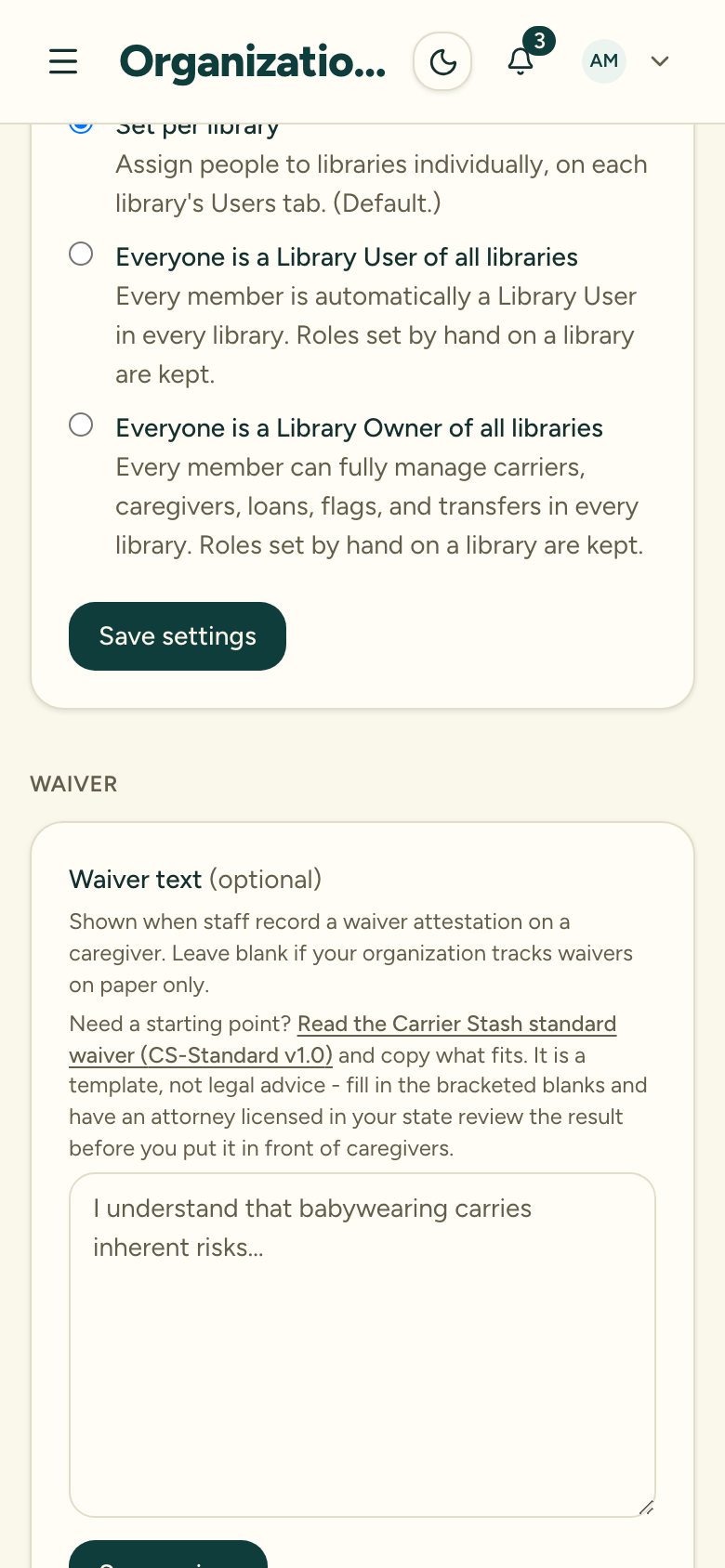
- Set per library (default) — assign people individually on each library’s Users tab.
- Everyone is a User of all libraries — every member is automatically a User everywhere.
- Everyone is a Library Owner of all libraries — every member can fully manage every library.
Roles you assigned by hand are always kept, and switching back removes only the auto-granted access. Because this grants or removes access for your whole team at once, saving a change here also asks you to confirm. For managing individual roles, see Manage team access.
Waiver
The standard waiver wording for your organization. Whatever you enter here is shown when staff record a waiver attestation on a caregiver, so everyone attests to the same text. It’s plain text, optional, and any Org Admin can edit it — leave it blank if your organization tracks waivers on paper only.
Event types
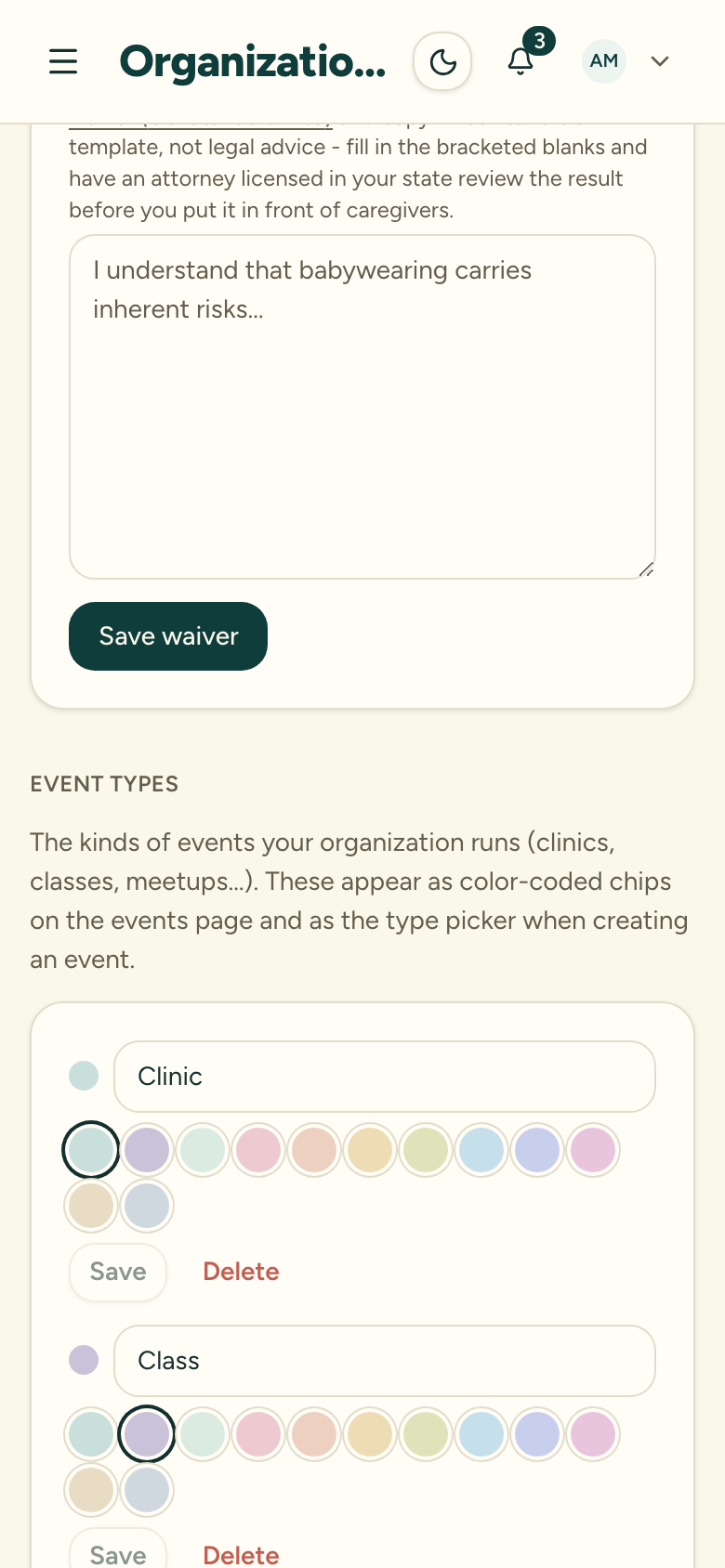
The kinds of events your organization runs — clinics, classes, meetups, and so on. Event types are managed right here on the organization settings page: each has a label and a color, and they appear as color-coded chips on the events page and as the type picker when creating an event. See Create an event and packing lists.
Email notifications
Links to the notification templates page, where you customize the subject and body of the automated emails your organization sends (due-soon, overdue, waitlist, and mention notifications). Each library can override the org-level templates. Full details in Email notifications.
Subscription
Links to the Subscription page, where you can view your current plan and usage, upgrade or change plans, and manage your subscription, card, and invoices through Stripe.
Data export
Links to the CSV export page, where you can download your carriers or caregivers — handy for backups, mail-merge, or moving data elsewhere.
Library roles
A reference section explaining what Library Owners and Users can do. Roles themselves are assigned per library, on each library’s Users tab — see Manage team access.
Danger zone
The organization owner (only) can permanently delete the organization from here. To start, type the organization’s slug, tick the acknowledgement, and choose Request deletion — Carrier Stash then emails the owner a confirmation link that is valid for 24 hours.
Nothing changes until that link is opened. While a request is waiting for confirmation the organization stays fully usable, and the deletion can be cancelled right here in the Danger zone.
The moment you confirm, the organization goes offline for everyone. You and every other member lose access immediately, its public look book stops working, unaccepted invitations are cancelled, and — if you’re on a paid plan — the subscription is cancelled with no refund. Its data is then permanently deleted 14 days after you confirm.
During those 14 days the organization can still be restored. Because its own pages are dark, the restore lives on your organization list (the org picker you see after signing in) under Scheduled for deletion → Restore organization; you can also email hello@carrierstash.com and we’ll restore it for you. A restored organization comes back on the Free plan — if it was paid, you’d need to subscribe again. After the 14 days, nothing can be recovered.
Export anything you want to keep from Reports → Export before you confirm — you won’t be able to reach it afterwards.