Give a carrier away
Record that a carrier left your library for good — a family in need took it home, a raffle winner claimed it, a donation went out. A Library Owner of the carrier’s library or an Org Admin can give a carrier away.
Give Away is different from plain archiving: it records who received the carrier and how, then archives it as Retired – Given Away in one step. You won’t find “Given Away” in the ordinary Archive dialog’s reason list — that reason is only ever set by the Give Away action, so the giveaway details are never skipped.
Giving a carrier away works on every plan — the requirements are the carrier’s own settings below, not your tier.
Steps
1. Check the carrier can be given away
- The carrier must be marked Giveaway eligible — set it when you add or edit the carrier. Without it, the Give Away button doesn’t appear.
- The carrier must be Available, Out for Repair, or On loan. A carrier that’s On loan can be given away — the loan becomes a gift, and the open loan is closed as ended without return. A Reserved carrier can’t be given away until the hold is cancelled, and an Archived one is already out of inventory.
- Check the carrier’s Restricted use field first. Donor restrictions like Cannot be given away per donor wishes or Cannot be given away per brand agreement mean you shouldn’t give it away — Carrier Stash shows the restriction on the record but won’t block you, so honoring it is up to your team.
Giveaway stock normally lives in a library set up as Giveaway-enabled (a library type that marks it as running a giveaway program). The action’s actual gate, though, is the carrier’s own Giveaway eligible flag — that flag is what makes the Give Away button appear.
2. Record the receipt when giveaway stock arrives (recommended)
When a carrier is donated specifically to be given away, record where it came from. On the carrier’s page, find the Giveaway card and choose Add receipt (or Edit receipt to update one):
- Donor name — required
- Donation type — required: Monetary or Physical
- Restrictions and Date donated — optional
This receipt is separate from the carrier’s ordinary acquisition donor — it records the provenance of your giveaway stock, and it never changes the carrier’s status.
3. Open the Give Away dialog
On the carrier’s page, choose Give Away.
It sits in the ⋯ menu in the top corner of the carrier’s page, alongside actions like Transfer and Archive.
4. Fill in the giveaway details
- Date of giveaway — required; defaults to today
- Recipient name — optional
- Distribution method — optional; for example pickup, mailed, or event handoff
- Notes — optional
Only the date is required, but record the recipient when you can — grant applications and annual reports often ask exactly who your giveaways reached, and this is the record you’ll pull from.
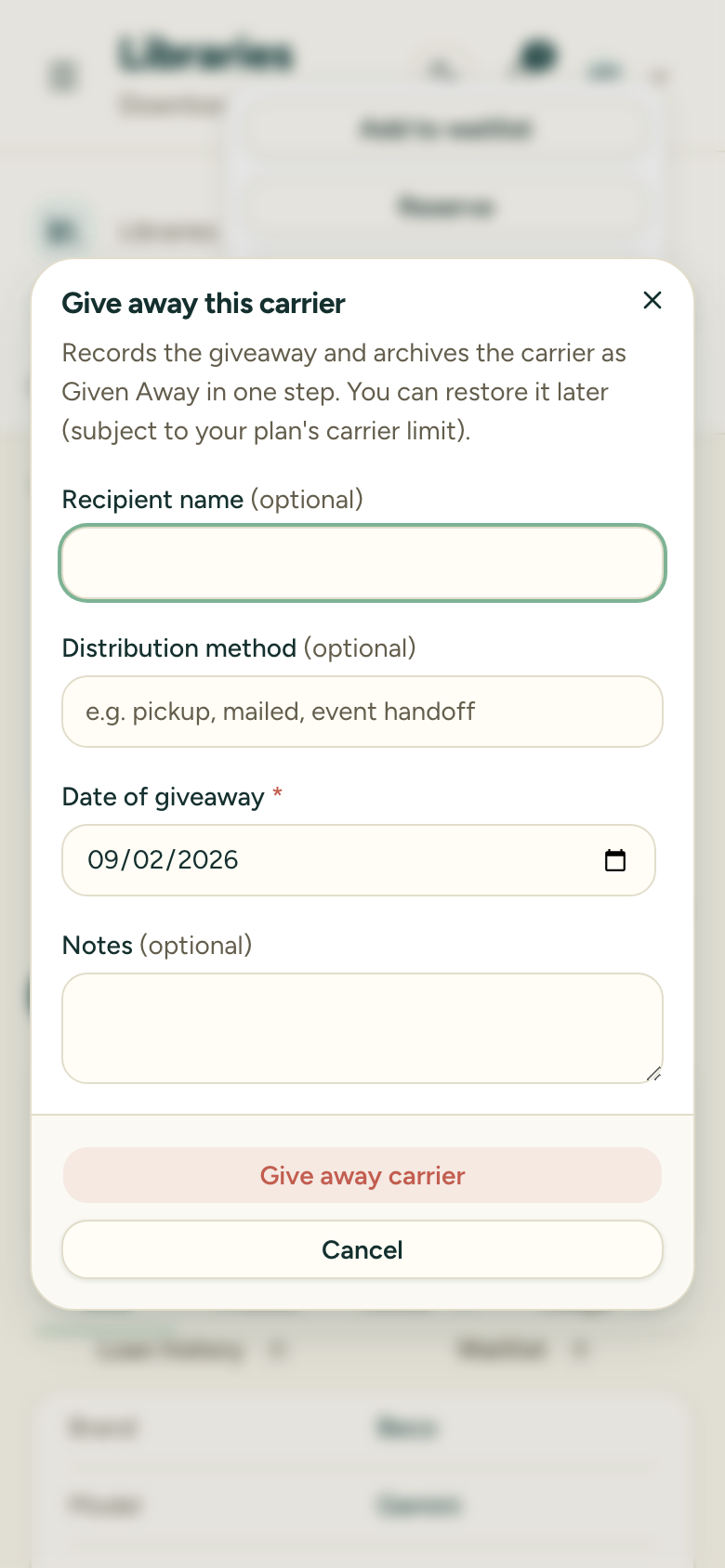
5. Confirm
Choose Give away carrier. The giveaway is recorded and the carrier is archived in the same step.
What happens after
- The carrier’s status becomes Archived with the reason Retired – Given Away, and it moves to the Archived Carriers view.
- It stops counting toward your plan’s carrier limit right away.
- If it was on loan, the open loan is closed as ended without return — the loan history stays intact.
- The giveaway record is kept permanently. It even survives a later permanent deletion of the carrier — the donor and recipient details remain, with a note that the carrier record no longer exists.
- You can still restore the carrier from the archive later if the giveaway falls through (subject to your plan’s carrier limit).