Create a caregiver
Add a caregiver record to your organization so you can lend to them and keep their loan history. Caregivers are org-scoped — a caregiver you add belongs to the whole organization, not to one library. Any assigned User (volunteer), Library Owner, or Org Admin can create a caregiver.
You can start a caregiver from either place:
- The Add caregiver button on the Caregivers screen
- Quick-create inside the check-out flow — see Quick-create during check-out
Steps
1. Open the new caregiver form
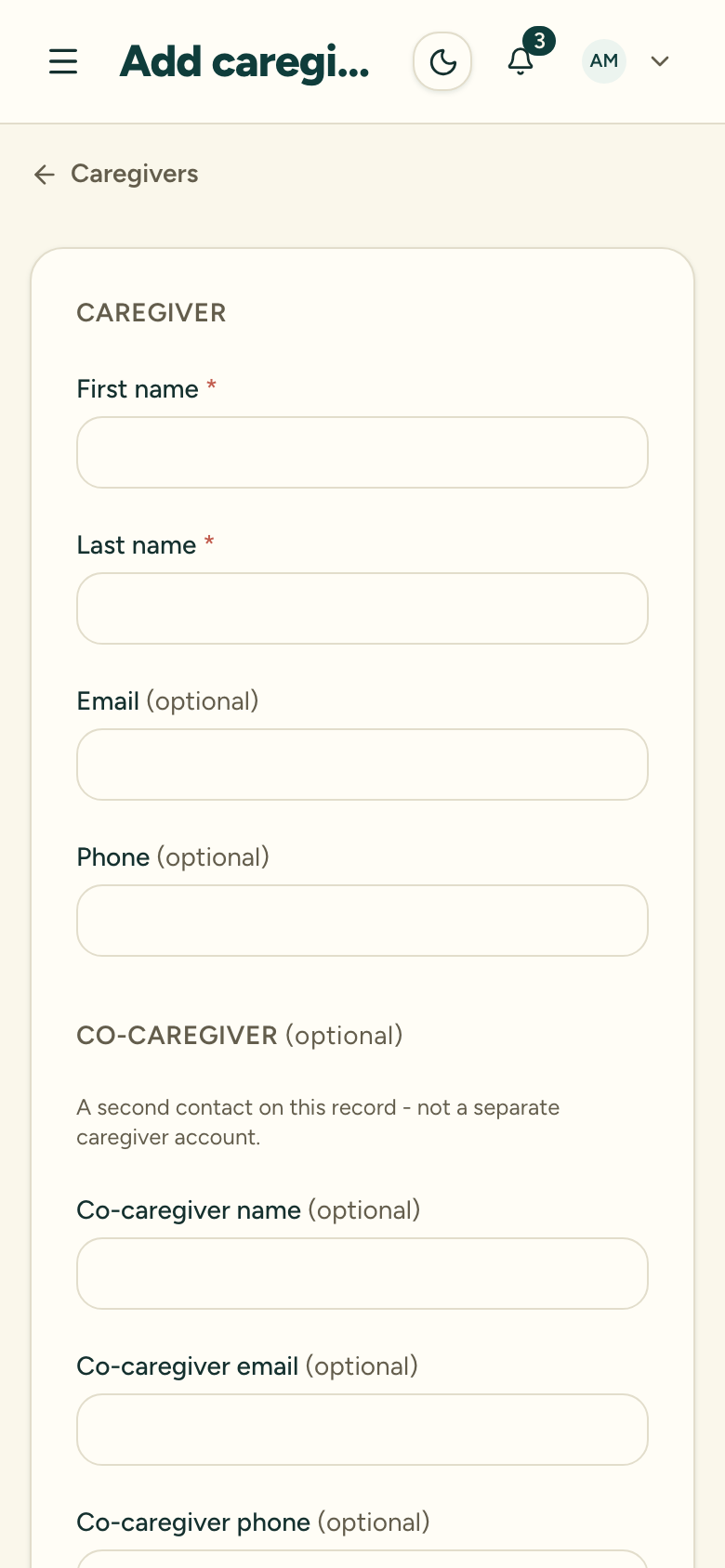
On the Caregivers screen, choose Add caregiver.
2. Enter the name
Only First name and Last name are required. Everything else is optional and can be added later.
3. Add contact details (optional)
Fill in any of Email, Phone, Co-caregiver name, Co-caregiver email, and Co-caregiver phone as you have them. An email is needed later if you want to send this caregiver overdue reminders or waitlist notices.
4. Set email preferences (optional)
Two opt-outs are available: Opt out of newsletters and Opt out of mass emails & announcements. These do not affect essential lending emails such as overdue reminders.
5. Save
Save the record. The caregiver is now searchable across your organization for check-out.
After you create a caregiver
The record opens with sections for loan history, flags, waiver attestations, fit checks, and notes — all empty until activity is recorded. From here you can record a waiver or add a flag.
Who can see the caregiver depends on your organization’s access mode. In org-wide mode, any member can find the record. In per-library mode, Users and Owners see it only once the caregiver is tied to a library they’re assigned to — through a loan, reservation, or waitlist entry — and the person who created the record can always see it. Org Admins always see every caregiver. See Libraries and access modes.