Set up MFA (TOTP)
Add a time-based one-time password (TOTP) authenticator app to your account for stronger security. Once it’s active, signing in asks for a 6-digit code from your app after your password.
MFA is available to everyone and strongly recommended for Org Admins and Library Owners. You’ll need an authenticator app such as Google Authenticator, Authy, or 1Password.
MFA is optional. There is currently no setting to require it for your whole organization — each person turns it on for their own account.
Steps
1. Open your account page
Go to My account and find the Two-factor authentication section.
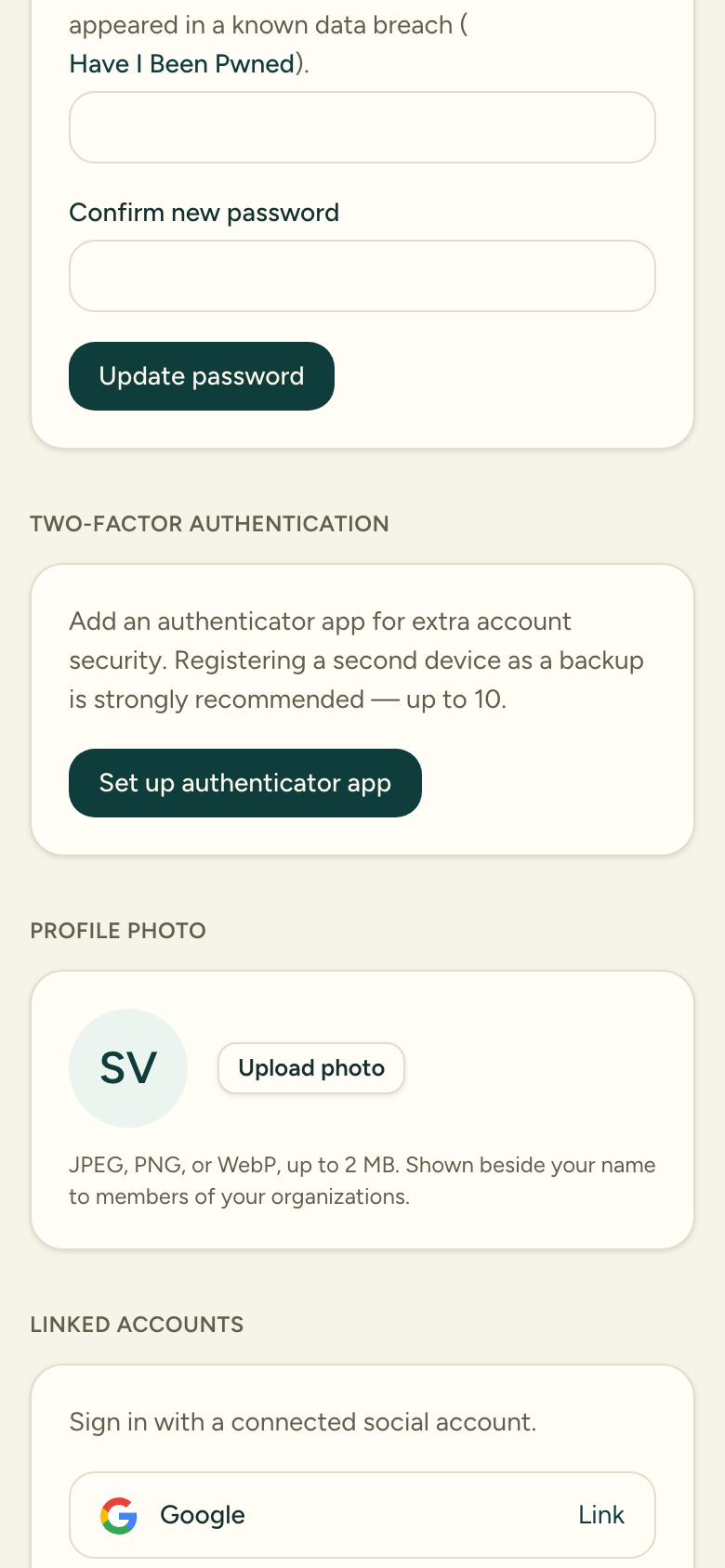
2. Start setup
Choose Set up authenticator app. A QR code appears.
3. Add it to your authenticator app
Scan the QR code with your authenticator app. If you can’t scan, expand Can’t scan? Enter key manually and type the secret key into your app instead.
4. Confirm with a code
Enter the current 6-digit code from your app and choose Activate. Once the code is verified, the authenticator app is added to your account.
After setup
Your account now shows an active Authenticator app under Two-factor authentication. The next time you sign in, you’ll enter your email and password, then be prompted for a code from your app.
To remove the authenticator later, return to the same section and choose Remove.
If you lose your phone
Carrier Stash does not issue backup or recovery codes, so plan ahead: when you set MFA up, keep the manual secret key from step 3 somewhere safe (a password manager is ideal). With that key you can re-add your account to a new authenticator app and sign in again.
If you’ve lost both your phone and the secret key, there’s no self-service way back into that account — contact support for help. We can’t promise a specific recovery path here, so the safest protection is saving that key when you enroll.