Bulk import carriers and caregivers
Move an existing spreadsheet into Carrier Stash instead of typing each record by hand — ideal when you’re migrating from Google Sheets, Excel, or another system. Only an Org Admin or a Library Owner can import, and bulk import is available on every tier, including Free.
You can import carriers (including equipment) and caregivers from a CSV upload. There is no loan import — loans are created through check-out.
Steps
1. Open the importer
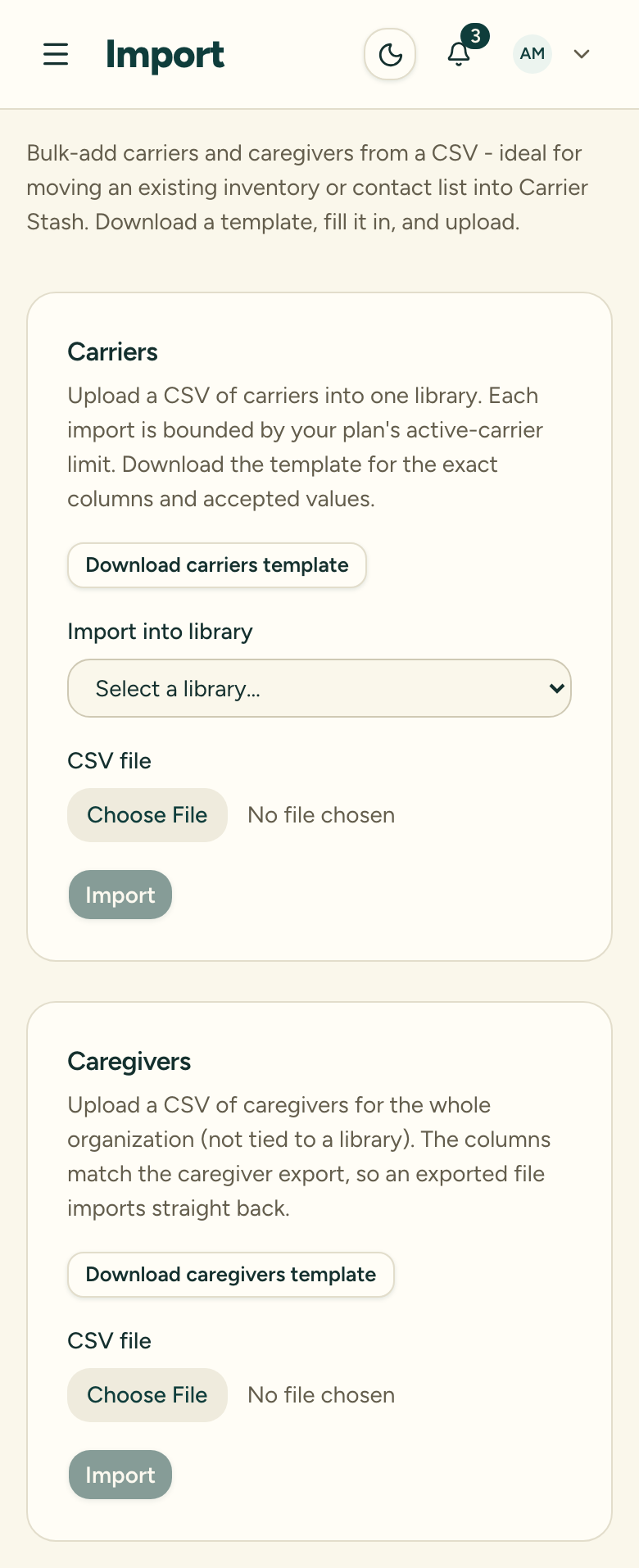
Open the Import page from your account menu.
You’ll find Import in the account menu (the dropdown under your name), and the Export page links to it as well.
If you’re a Library Owner, you’ll see the libraries you own; an Org Admin can import into any library in the organization. Someone with neither role sees a notice asking an administrator to run the import instead.
2. Download the template
Each section of the Import page has its own template — Download carriers template and Download caregivers template. The columns match Carrier Stash’s CSV exports, so a file you exported re-imports as-is: the export’s Carrier ID, Status, For sale, and Created at columns are simply ignored on import, because Carrier Stash assigns those itself.
3. Fill in your spreadsheet
Work in whatever tool you like, then save as CSV:
- From Google Sheets: File → Download → Comma-separated values (.csv)
- From Excel: File → Save As → CSV
A file can hold up to 1,000 rows. If you have more, split it into smaller files.
4. Upload and review
For carriers, pick the library the file imports into (one library per file), then choose your CSV. Carrier Stash previews the file before anything is written: how many rows it found, how many are valid, and the first few errors with their row numbers so you can fix them in your spreadsheet first.
5. Import
Choose Import. Rows that pass validation are created; any that fail are reported individually (see Fixing errors below). Caregivers are imported for the whole organization — they aren’t tied to a library.
Carrier columns
Only Model is required — everything else is optional, so a minimal spreadsheet with just a Model column works fine.
| Column | Required | What it accepts |
|---|---|---|
| Item type | No | Carrier or Equipment (leave blank for a regular carrier) |
| Brand | No | Free text |
| Model | Yes | Free text — the carrier’s model name |
| Variant | No | Free text |
| Type | No | A carrier type, matching the Type options on the Add carrier form (for example Soft Structured Carrier (SSC)); the header Carrier type also works |
| Condition | No | New, Like New, Good, Fair, or Poor |
| Loan eligible | No | Yes / no |
| Giveaway eligible | No | Yes / no |
| Size | No | Free text |
| Min age (months) | No | Number |
| Max age (months) | No | Number |
| Min weight (lbs) | No | Number |
| Max weight (lbs) | No | Number |
| Fabric | No | Free text |
| Certifications | No | Free text |
| Pattern / color notes | No | Free text |
| Donor | No | Free text — who the item came from |
| Donation type | No | Babywearing brand donation · Sponsor donation · Bought with directed financial donation · Bought with org funds · Donated by org member · Donated by community · Donated by another babywearing org |
| Donor restrictions | No | Free text |
| Donated on (YYYY-MM-DD) | No | A date, e.g. 2026-03-14 (the headers Donated on, Donated at, and Donated date also work) |
| Received condition | No | New, Like New, Good, Fair, or Poor |
| Restricted use (;-separated) | No | One or more of: Cannot be sold per donor wishes · Cannot be sold per brand agreement · Cannot be given away per donor wishes · Cannot be given away per brand agreement · Must only be used as giveaway per donor wishes — separated by semicolons |
| Wrap size | No | Free text |
| Ring sling size | No | Free text |
| Strap style | No | Free text |
| Waist style | No | Free text |
| Child size | No | Free text |
| Plus size | No | Yes / no |
| Carry positions (;-separated) | No | Free text, several values separated by semicolons |
| Additional information | No | Free text |
The importer is deliberately forgiving:
- Headers are matched loosely — capitalization, spaces, hyphens, and underscores don’t matter.
- Dropdown values (Type, Condition, Donation type, Restricted use) accept the same wording you see in the app, in any capitalization.
- Yes/no columns accept
yes,no,true,false,y,n,1,0, orx. A blank cell means “no”. - Multi-value cells (Restricted use, Carry positions) hold several values in one cell, separated by semicolons.
Caregiver columns
The caregiver template mirrors the caregiver export exactly, so a caregiver export round-trips too.
| Column | Required | What it accepts |
|---|---|---|
| First name | Yes | Free text |
| Last name | Yes | Free text |
| No | A valid email address | |
| Phone | No | Free text |
| Co-caregiver name | No | Free text |
| Co-caregiver email | No | A valid email address |
| Co-caregiver phone | No | Free text |
| Newsletter opt-out | No | Yes / no |
| Mass email opt-out | No | Yes / no |
Plan limits
Before any carrier row is written, the import is checked against your plan’s active-carrier cap. A file that would push you over the limit is rejected whole, with a message telling you exactly how much room you have — for example, “This file has 60 carrier(s), but your free plan has room for 8 more.” You can upgrade, archive carriers, or split the file. Nothing partial happens: no rows from that file are created until it fits.
A few details:
- Equipment has its own separate cap — equipment rows are checked against the equipment limit, not the carrier limit.
- An active trial counts — if Carrier Stash has set your organization up with a trial, the import uses the trial tier’s higher cap.
- Caregiver imports have no cap on any tier.
See understand tiers and carrier limits for the caps themselves.
Fixing errors
Validation problems don’t sink the whole file — each bad row fails on its own while the good rows import. After the import you’ll see how many rows were created and how many failed, with a Download error report (CSV) button. The report contains your original columns plus a Row number and an Error column describing what was wrong (for example, an invalid Type value). Fix the cells, delete nothing — the importer ignores the extra Row and Error columns — and upload the corrected file again.
Watch out for duplicates
Carriers and caregivers are handled differently:
- Carriers always append. The importer never checks whether a carrier matches an existing one — identical carriers are legitimate inventory (a library can own three of the same model). Uploading the same carrier file twice creates every carrier twice.
- Caregivers are de-duplicated. A caregiver row counts as a duplicate when its name matches an existing caregiver and they share an email or a phone number. Duplicate rows are skipped, not imported — the existing caregiver record is left untouched, and no second copy is created. After the import you’ll see a note like “Skipped 3 duplicates already in your caregivers (same name and email or phone).” Re-running the same caregiver file is therefore safe.
If a carrier import partly succeeds, re-upload only the error report (the failed rows), not the original file, so the good rows aren’t created a second time.