What the Do Not Lend gate does
The Do Not Lend gate is the check that runs at check-out when the selected caregiver is flagged Do Not Lend — “gate” just means the app stops and asks before the carrier can go out. It’s there to stop a carrier going out to someone your library has flagged, while still letting a Library Owner make a judgment call. This page explains what you’ll see and what to do.
A caregiver is flagged Do Not Lend only when a Library Owner or Org Admin sets that flag by hand, with a required reason. See Add and amend caregiver flags for how the flag itself is set.
What happens at check-out
The gate appears during the review step of a check-out, after you’ve picked the carrier and the caregiver. What you see depends on your role.
If you’re a User (volunteer)
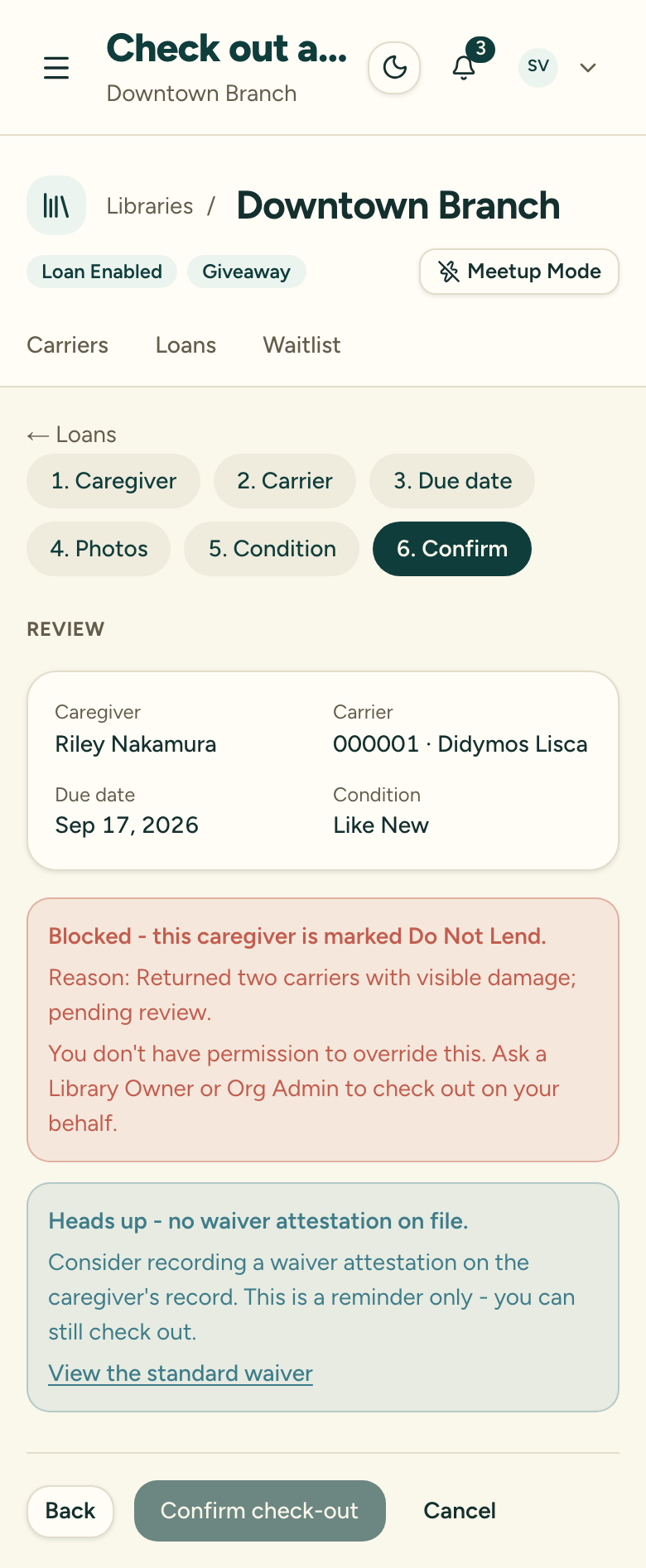
You see a Blocked — this caregiver is marked Do Not Lend message, along with the reason on record. You can’t complete the check-out. The message asks you to have a Library Owner or Org Admin check out on your behalf.
If you’re a Library Owner or Org Admin
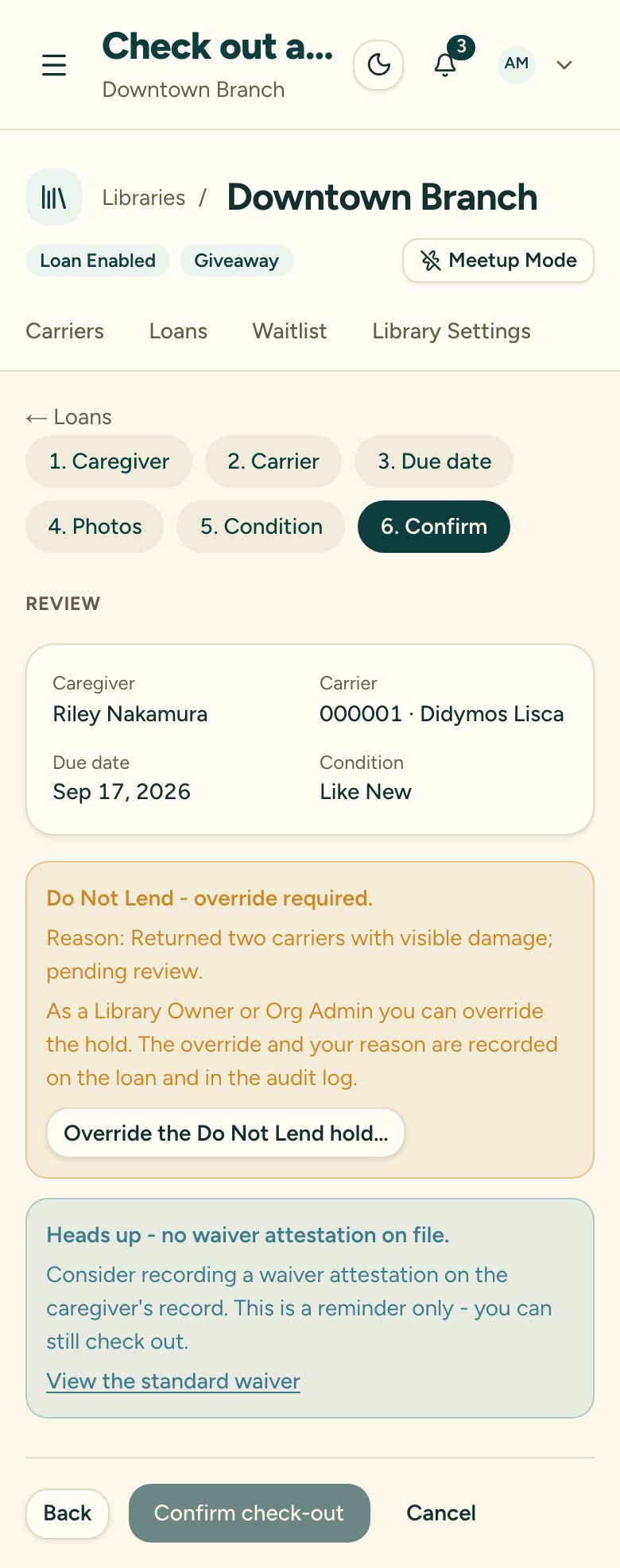
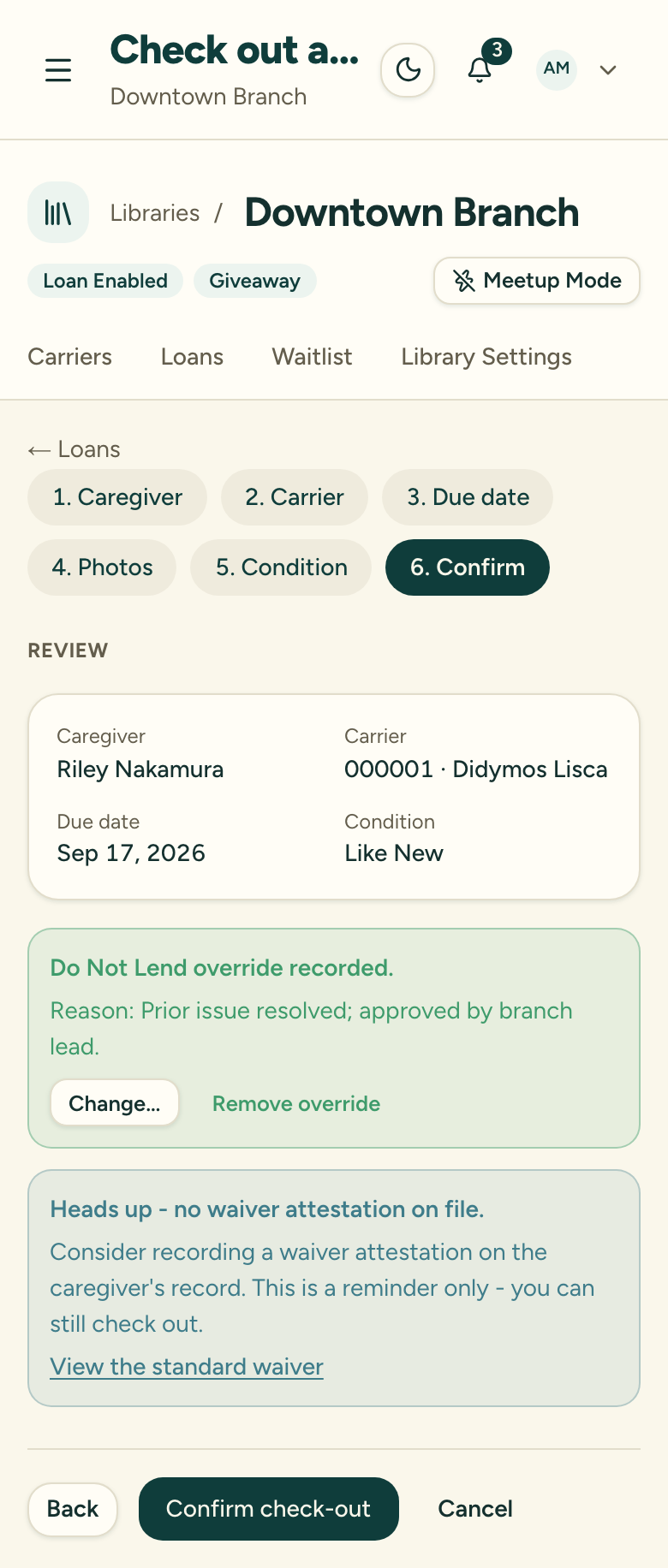
You see a Do Not Lend — override required notice with the reason. You can proceed, but only by choosing Override the Do Not Lend hold and entering a required override reason. Once you confirm, an override recorded confirmation appears and the check-out can go through. You can change or remove the override before you confirm the check-out.
What gets recorded
An override isn’t a silent workaround. When a Library Owner or Org Admin overrides the gate, the override and the reason are recorded on the loan and written to the audit log. The reason stays visible on the loan record itself; the audit-log entry is permanent and reviewable by Carrier Stash on request (there’s no separate org-facing audit view in the app). Together that’s the accountability that lets the override exist at all.
The waiver notice is not the Do Not Lend gate
At the same review step you may also see a no waiver attestation on file notice. That one is only a reminder — it never blocks the check-out, and anyone can proceed past it. Don’t confuse it with the Do Not Lend block. See Record a waiver.