Reserve a carrier
Put an available carrier on hold for a specific caregiver so it’s waiting when they come to pick it up. A reservation moves the carrier from Available to Reserved — it stays out of general circulation until it’s checked out or the hold is cancelled or expires. Any assigned User (volunteer), Library Owner, or Org Admin can place or release a reservation.
Reserving is different from the waitlist: you reserve a carrier that’s Available right now, while the waitlist records who’s next for a carrier. As a rule of thumb you waitlist a carrier that’s currently out — but any loan-eligible carrier can have a waitlist.
You can start a reservation from a carrier’s detail page while it’s Available.
Steps
1. Open the carrier
Go to the carrier’s detail page. The Reserve action is available when the carrier is Available.
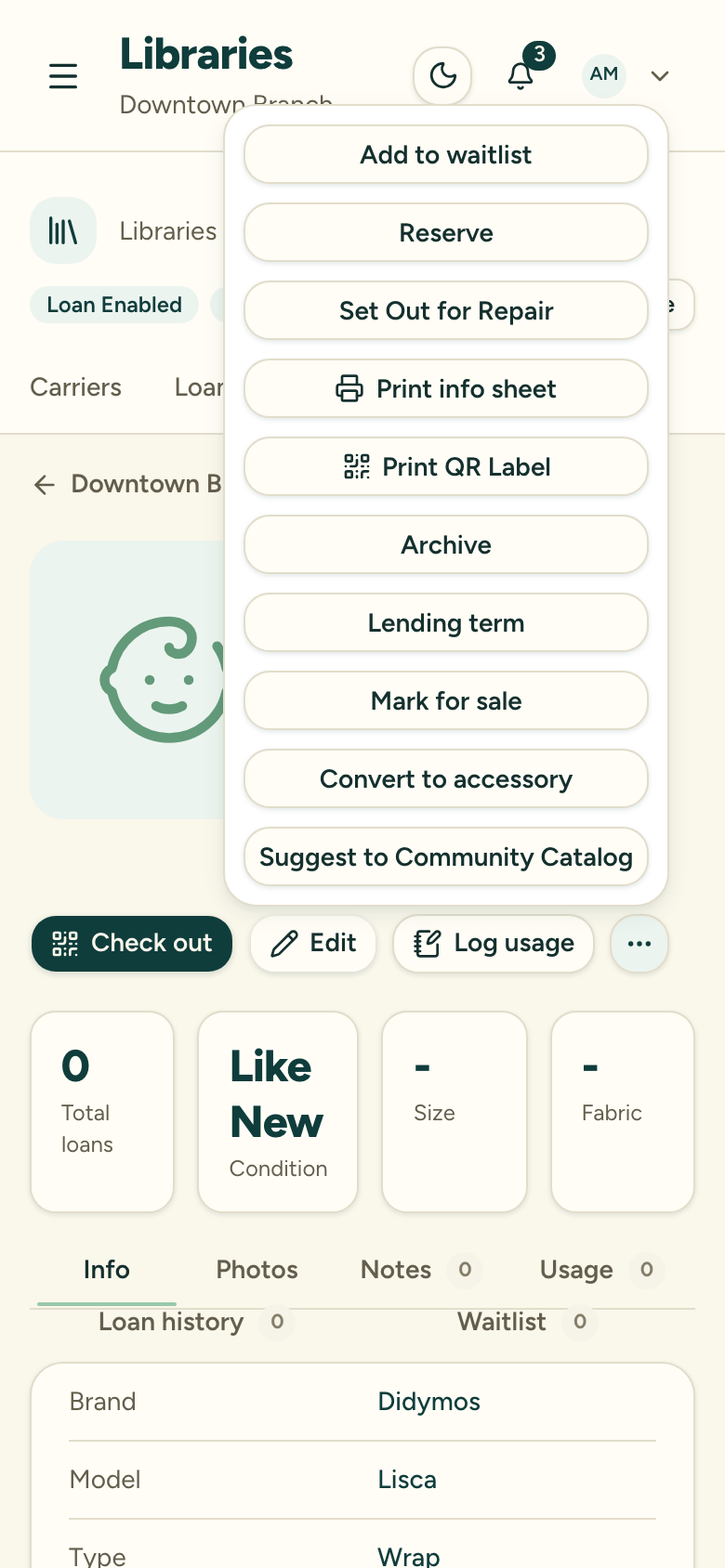
2. Choose Reserve
Select Reserve to open the Reserve this carrier dialog. It shows when the hold will expire based on your library’s hold window.
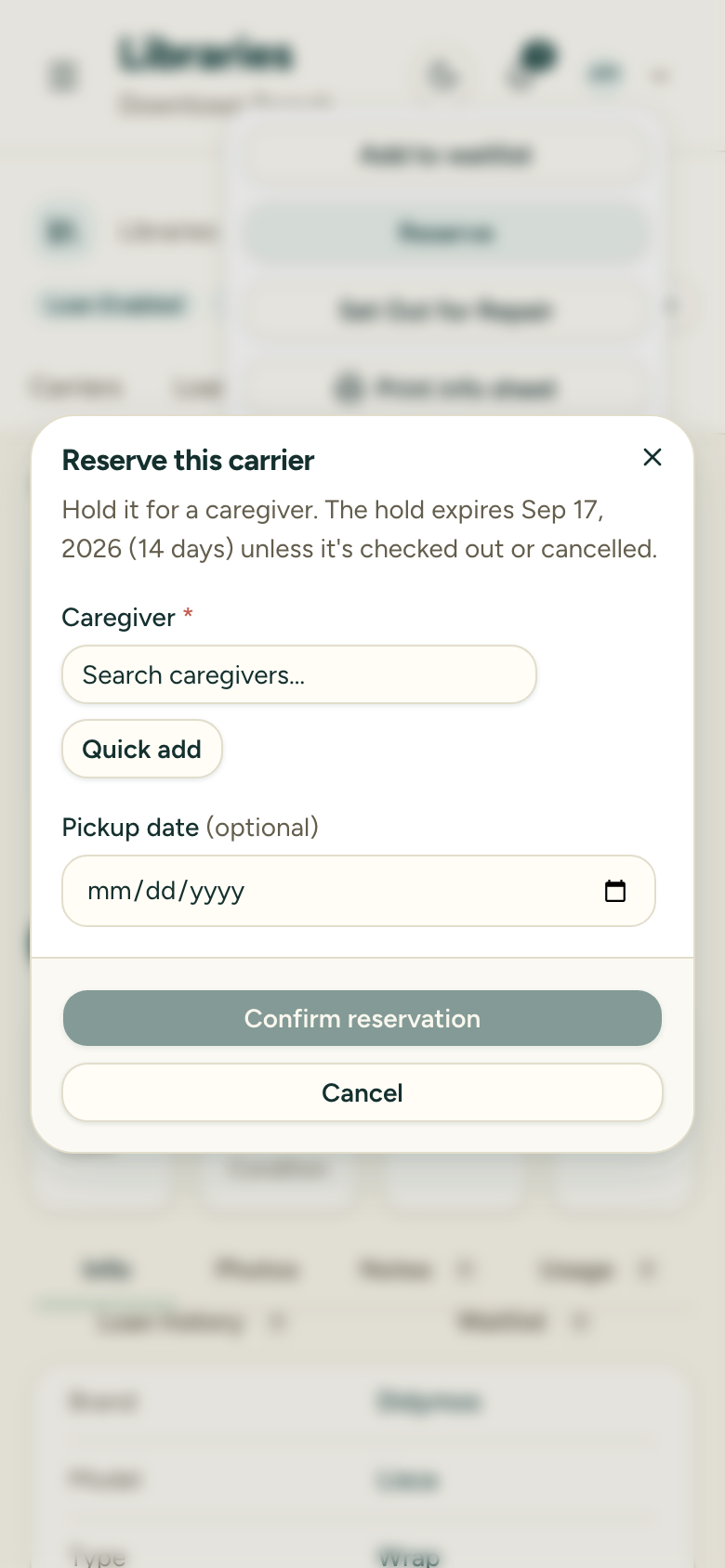
3. Pick the caregiver
Search for and select the caregiver the hold is for. This field is required.
4. Set a pickup date (optional)
Add the date the caregiver plans to pick up the carrier, if you know it. This is optional.
5. Confirm
Choose Confirm reservation. The carrier’s status changes to Reserved.
After reserving
The carrier is held for that caregiver. Its status shows as Reserved, and the hold runs until one of these happens:
- You check it out to the caregiver — start a check-out as normal.
- You cancel the hold — use Cancel reservation on the carrier’s detail page. The carrier returns to Available immediately.
- The hold expires — the default hold window is 14 days (configurable per library). On expiry the carrier returns to Available on its own, and the person who created the reservation sees a notice on their next sign-in — it doesn’t email them.
Setting and clearing the Reserved status is available to any assigned user. A reserved carrier can’t be transferred to another library or archived until the hold is cancelled first.