Invite your team and assign roles
Add staff and volunteers to your organization and give them the right level of access. Caregivers never get accounts — this is only for the people who run the library. When you’re done, your team members can sign in and work in the libraries you’ve assigned them to.
Only an Org Admin can invite people and set roles.
Steps
1. Invite a person by email
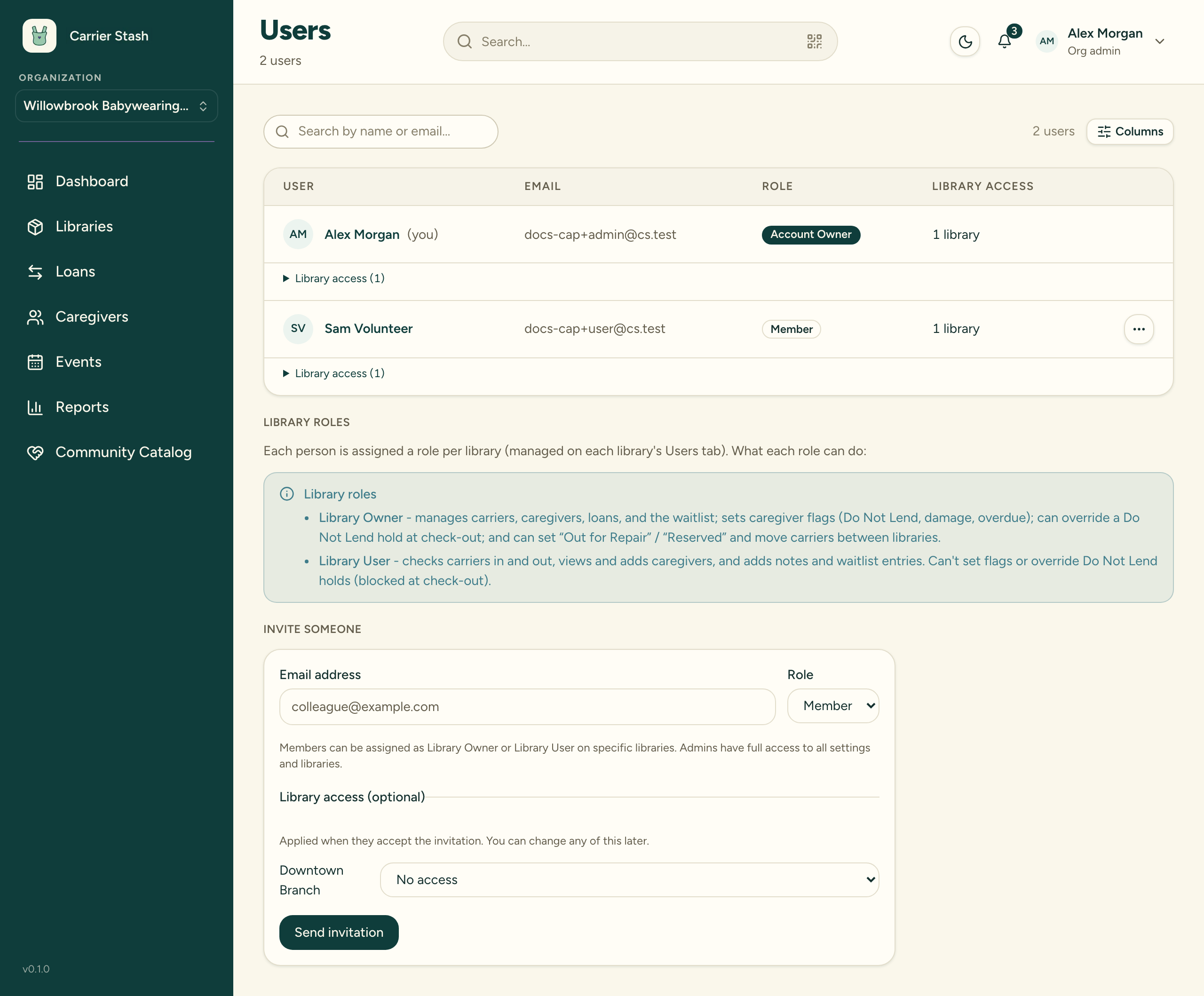
As an Org Admin, invite someone by email address. They’ll receive an invitation and accept it when they sign in, joining your organization.
If they already have a Carrier Stash account, no email goes out — the invitation is simply waiting for them the next time they sign in, and the Users page tells you that’s what happened.
Signing in with Apple? If the person plans to use “Sign in with Apple” and has Hide My Email turned on, invite the private relay address Apple gives them (something like abc123@privaterelay.appleid.com), not their regular email — otherwise the invitation won’t match the account Apple creates. See I was invited but don’t see the invitation if this happens.
2. Set their organization role
Every member has an org-level role:
- Org Admin — full control of the organization, every library, billing, and settings
- Member — belongs to the organization but has no library access on its own until you assign them to a library
3. Assign them to libraries
Give members access to specific libraries from the Users page or a library’s user settings. Each library assignment carries a role:
- Library Owner — manages one library: its carriers, loans, and caregiver records
- User (volunteer) — handles day-to-day work: check-outs, check-ins, and caregiver records in that library
A person can hold different roles in different libraries. Org Admins already see and manage every library, so they don’t need per-library assignments.
4. Confirm access
Once assigned, members can sign in and start working in their libraries. Under per-library access mode, they’ll see only the libraries you’ve assigned; under org-wide access mode, they can read across libraries but still need an assignment to make changes.
After inviting your team
Your team members can sign in and manage carriers, loans, and caregivers according to their roles. Adjust roles or remove access any time from the Users page.