Pack out and confirm returns
Once a packing list exists, it moves through four stages that mirror the real day: building the selection, packing the bag, taking it to the event, and confirming everything came home. Events and packing lists are available on the Starter plan and above. On a shared list, anyone in your organization can pack and confirm returns; a private list is handled by its owner and Org Admins.
The four stages
- Building the list — carriers are being selected. Add or remove freely; anything except an archived carrier can be added.
- Ready — the physical packing. Confirm each carrier as it goes in the bag; progress shows as X of Y packed.
- Active — the bag is in transit or the event is underway. The carrier list is locked for adding and removing, and each carrier’s page shows “On packing list: [event name], [date]”.
- Completed — carriers confirmed returned and the list closed. The full record is kept.
A list can also be Cancelled at any point before it’s completed — see below.
Steps
1. Build the list
Add carriers by search, scan, or paste while the list is in Building the list — see Create an event and packing lists. When the selection is done, choose Advance to Ready.
2. Pack the bag
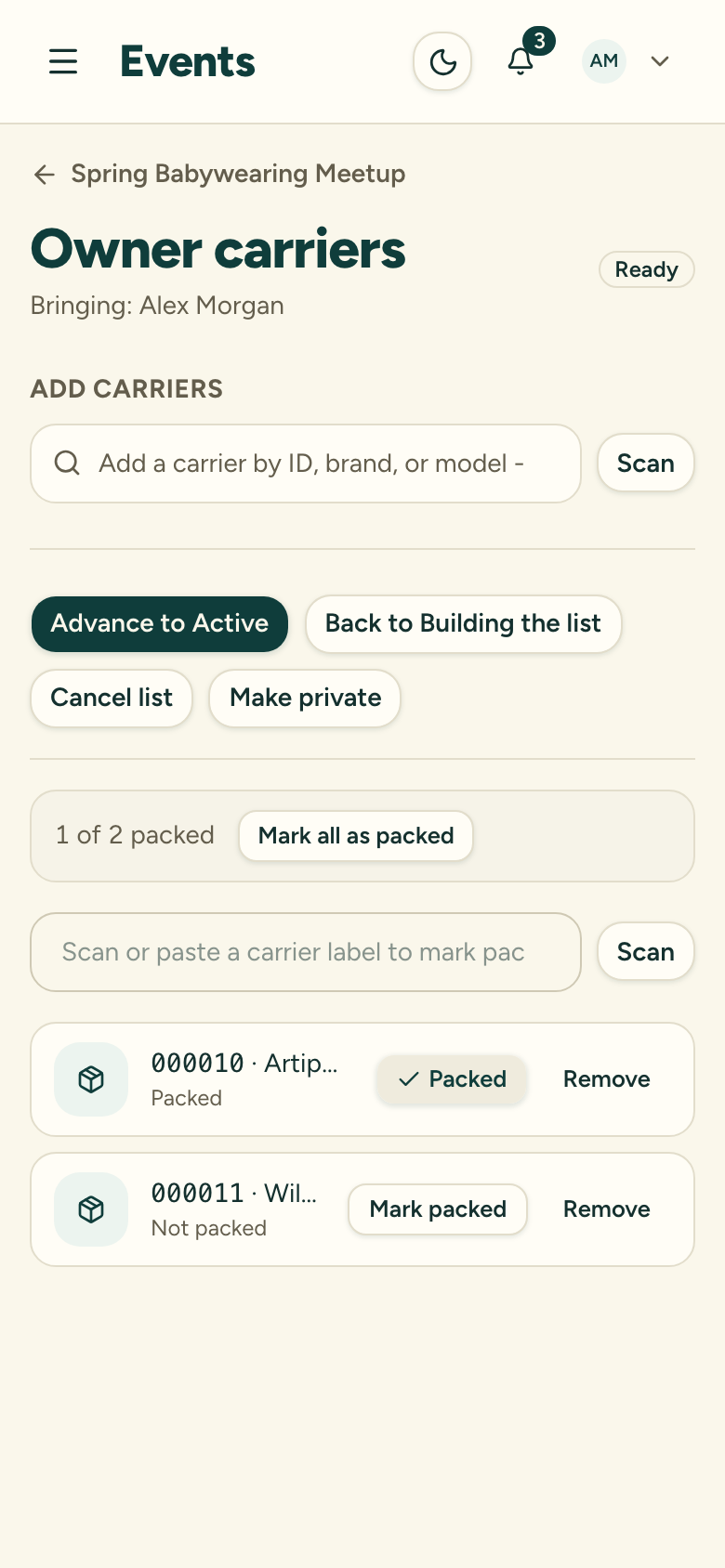
In Ready, each carrier starts as Not packed. As it physically goes in the bag, either:
- Scan its label (camera or handheld scanner) into the “Scan or paste a carrier label to mark packed…” box, or
- Tap Mark packed on its row, or
- Choose Mark all as packed to confirm the whole list at once
The counter shows X of Y packed. You can still add carriers, remove them, or un-mark one if it comes back out of the bag. Forgot something and need to reopen the selection? Back to Building the list steps the list back one stage — this is the only backward step that exists.
3. Head to the event
Choose Advance to Active when the bag leaves. The list locks — no more adding or removing — and every carrier on it shows the “On packing list” note on its page and in the check-out and transfer screens. The note is a heads-up, never a block: the carriers keep their real statuses the whole time.
4. Confirm returns and complete
Back home, confirm each carrier as it comes out of the bag — scan it into the “Scan or paste a carrier label to mark returned…” box, tap Mark returned on its row, or use Mark all as returned. The counter shows X of Y returned. When everything’s accounted for, choose Advance to Completed to close the list. (A straggler that turns up later can still be marked returned on a completed list.)
Stepping back and cancelling
- The only backward step is Ready → Building the list, so a list can be reopened to add carriers before the event
- Active, Completed, and Cancelled never reverse
- Cancel list is available at any stage before completion, but only to the list’s owner (or creator) and Org Admins — even on a shared list. Cancelling changes no carrier statuses, and doesn’t remove the carriers from the list either — the cancelled list, and everything on it, stays as a record and still shows up in the event roster
The event roster
The event’s page shows a roster — every carrier across all of the event’s shared packing lists in one aggregated view (plus any private lists you own or administer, marked with a lock icon). It’s the at-a-glance answer to “what’s coming to this event?”:
- Each carrier appears once, with the list (or lists) it’s on
- Packed / Not packed and Returned / Not returned badges roll up its state, so stragglers stand out after the event
- Anyone in the organization can view the shared roster
Mark carriers used at the event
From the roster, one tap on Mark used records that a carrier was actually used at the event — a try-on, a demo, a class. It logs a usage entry (type Group Event, dated today, linked to this event) on the carrier’s record, without changing its status. Over time this shows you which carriers are always packed but never used. See Track carrier usage.