Run the waitlist
When a popular carrier is checked out, add caregivers to its waitlist so you know who’s next in line. The waitlist is a first-in, first-out queue attached to a specific carrier — it’s independent of the carrier’s status, so a carrier that’s On loan, Out for Repair, or Reserved can still have people waiting. Only loan-eligible carriers can have a waitlist. Any assigned User (volunteer), Library Owner, or Org Admin can add and manage waitlist entries.
Waitlists are available on the Starter plan and above.
You can work with waitlists in two places:
- A carrier’s detail page — add and manage the entries for that one carrier
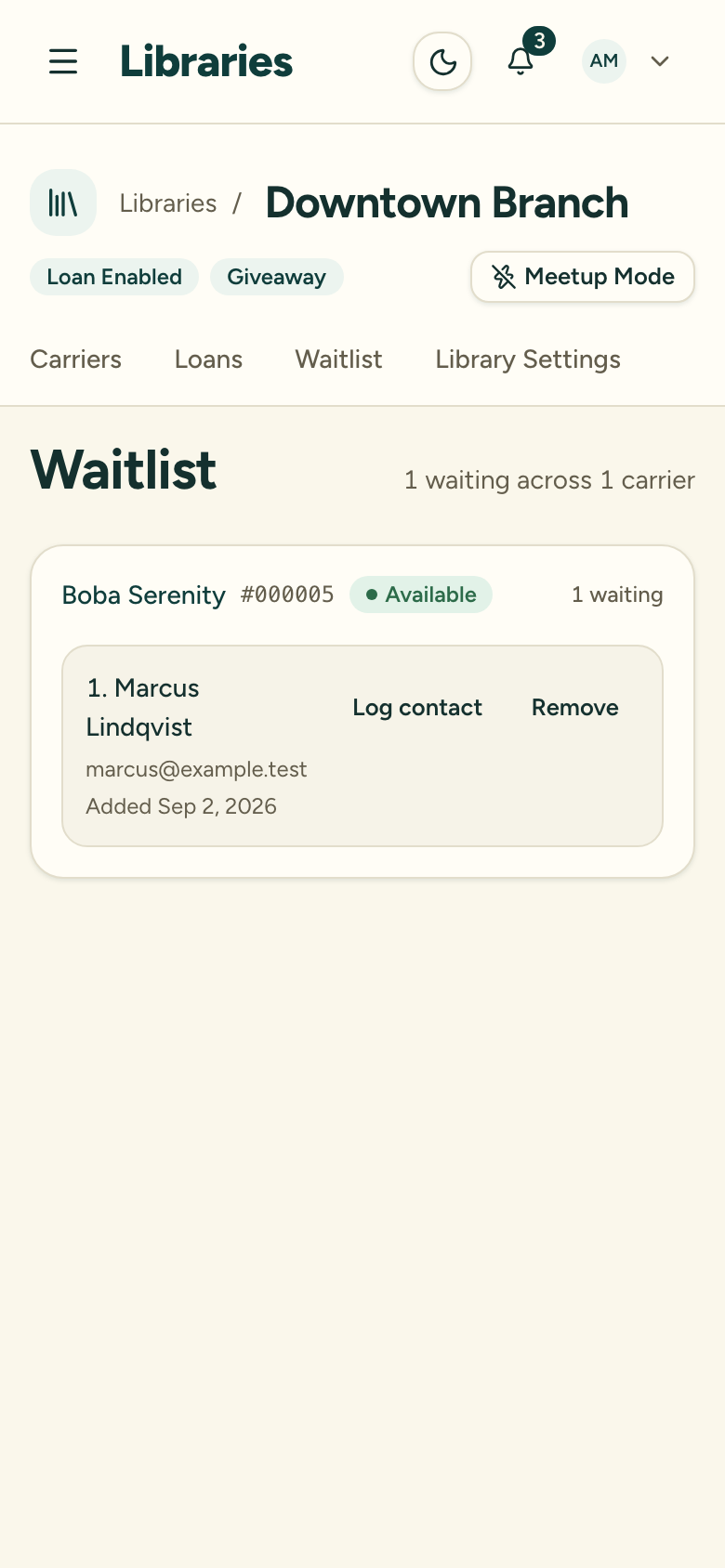
- The library-wide Waitlist tab — see everyone waiting across the library
Steps
1. Add a caregiver to the waitlist
On the carrier’s detail page, choose Add to waitlist. Search for and select the caregiver, add an optional note, and confirm. They’re placed at the bottom of the queue. A note asks you to avoid recording sensitive personal information.
You can have at most one active entry per caregiver per carrier. A caregiver you remove can be added back later.
2. Watch for the waitlist at check-in
When a waitlisted carrier is checked in, the check-in flow shows a banner listing who’s waiting, with their contact info, so you don’t have to go looking. See Check in a carrier.
3. Notify the next caregiver
From a waitlist entry, choose Notify to email the caregiver that the carrier is available. The email is queued for sending and the attempt is logged on the entry’s contact log. Notify is only available when the caregiver has an email on file.
Notifying doesn’t hold the carrier — it stays available to anyone until it’s checked out. To guarantee it for the person you notified, reserve it for them right away.
You can also log contact attempts you make yourself — call, text, in-person, and so on — each with its outcome and notes, so the queue reflects everything you’ve tried.
4. Check the carrier out to them
When the next caregiver claims the carrier, check it out to them as normal.
5. Remove the entry
When someone no longer needs to wait, choose Remove on their entry. A reason is required — filled, declined, unreachable, or cancelled — plus an optional note. This keeps the queue honest about why people left it.
Who can manage the waitlist
Who can read the queue depends on the org’s access mode: in org-wide mode any org member can read it; in per-library mode only people tied to the carrier’s library can (see Libraries and access modes). Adding entries, notifying, and removing entries require write access to the library (User and above, or an Org Admin). On the library-wide Waitlist tab, the per-entry manage controls appear only for people who can check carriers in and out in that library.