Use Meetup Mode
Meetup Mode is a faster view of check-out, check-in, and carrier lookup, built for a busy table at a meetup or open library hours. It’s a toggle, not a different system — you work with the same carriers, caregivers, and loans, just with fewer taps, so you can’t break anything by turning it on or off. Anyone who can check carriers out and in can use Meetup Mode, and it’s available on every plan.
Steps
1. Turn it on
Open your library and choose the Meetup Mode button in the library header — it’s there on every library page. The button switches to Meetup Mode · On, and you land on the Quick lookup screen: one big search box for finding a carrier by ID, brand, or model, plus a camera button for scanning a carrier’s QR label.
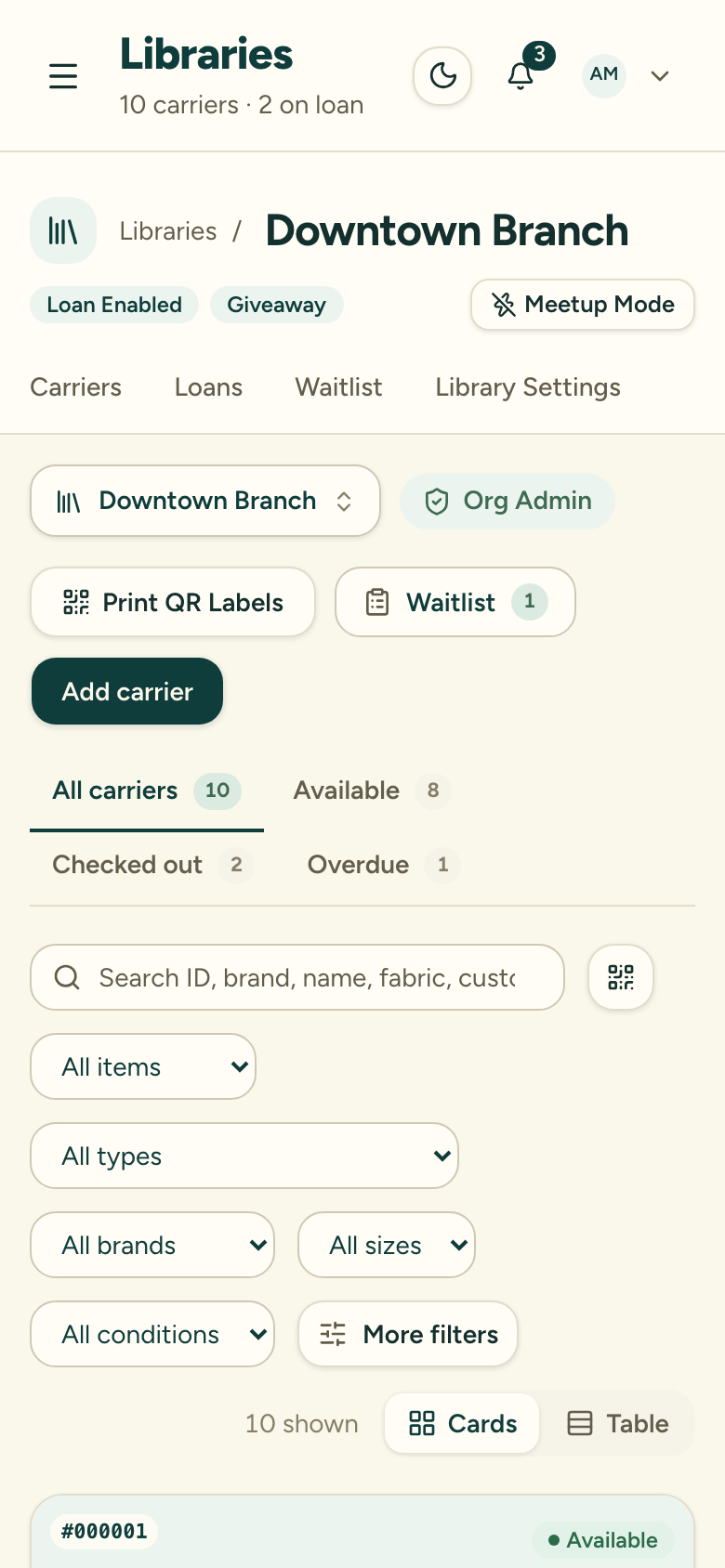
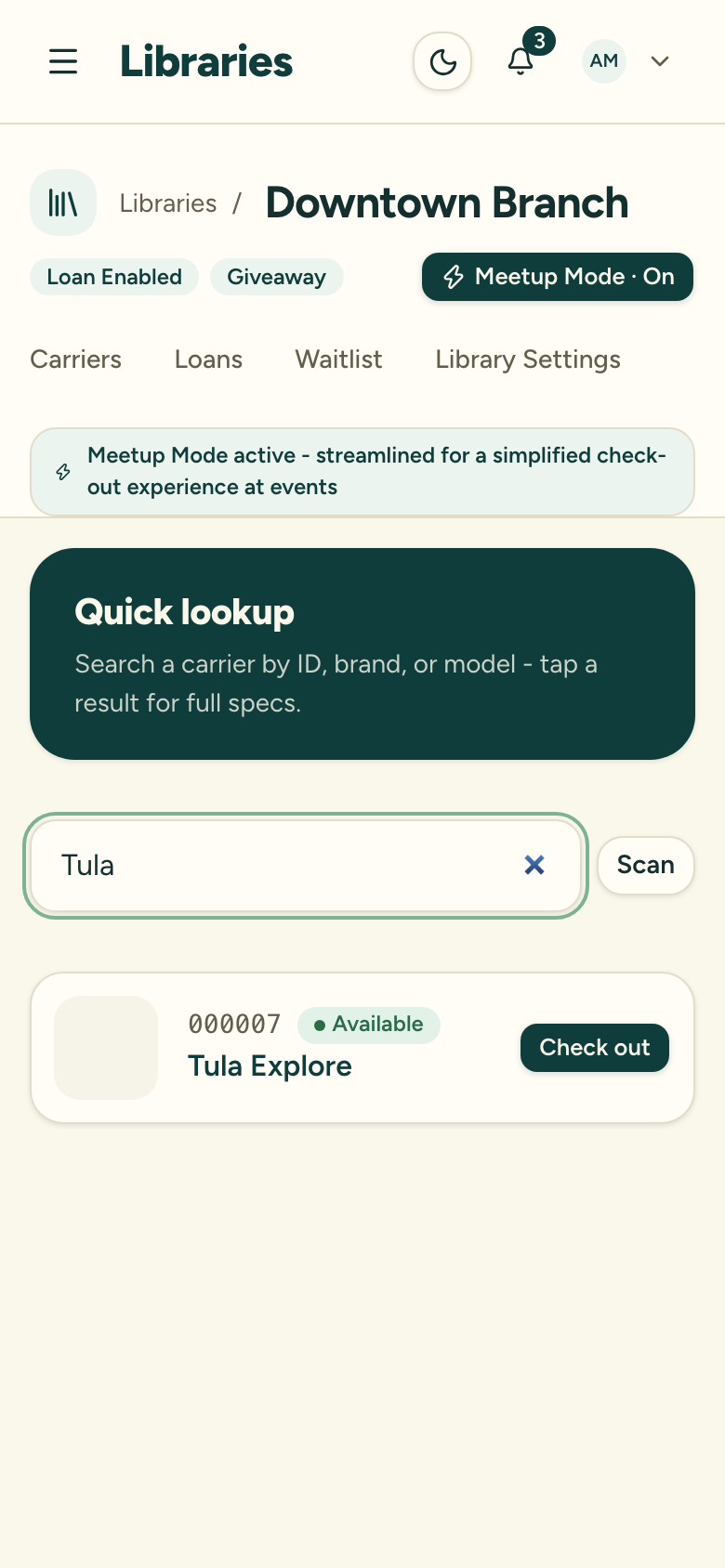
While the mode is on, a banner in the library header reads “Meetup Mode active - streamlined for a simplified check-out experience at events” — so you always know which mode you’re in.
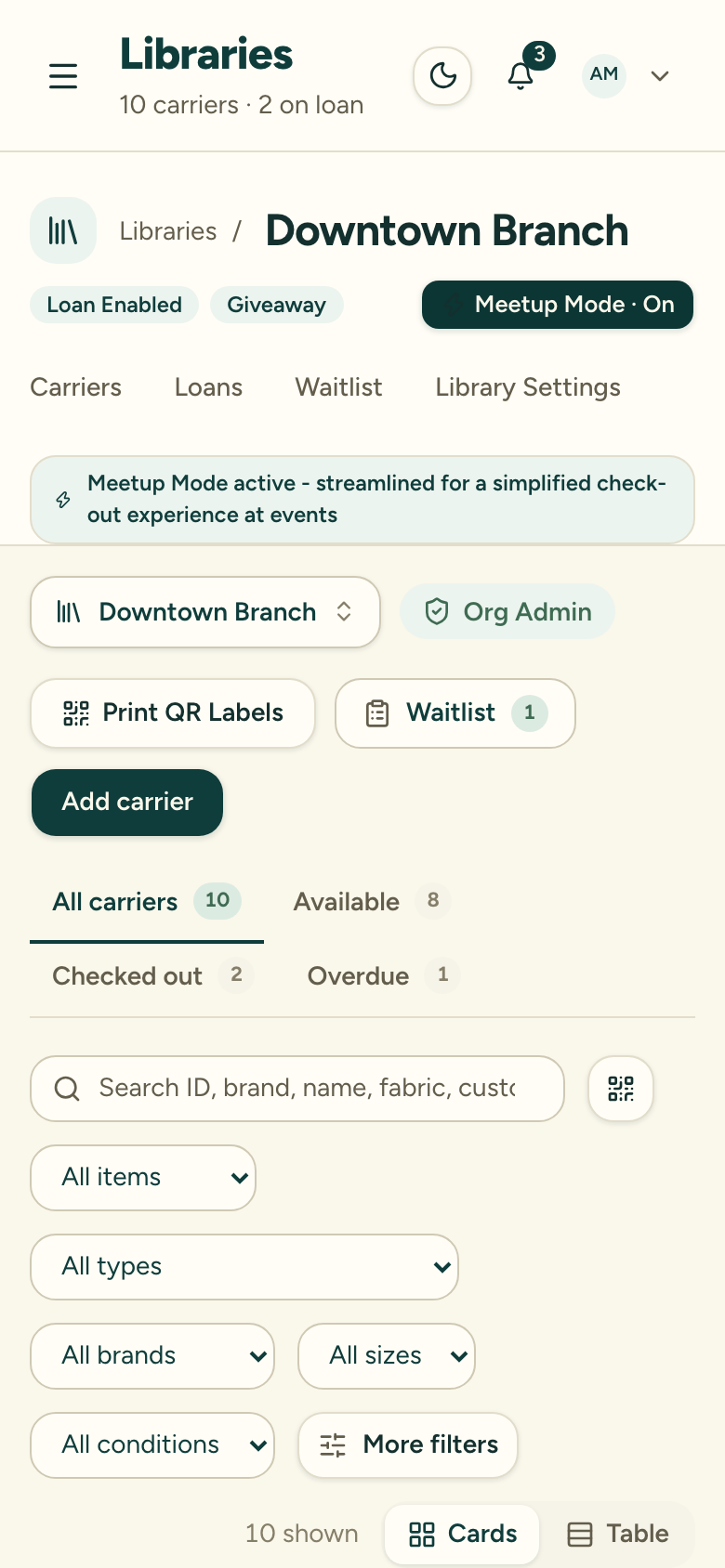
Meetup Mode is scoped to this one library and this one browser tab: it survives an accidental page reload, but it won’t follow you to a different library, a new tab, or another device — everyone at the table turns it on for themselves.
2. Work the table
Search or scan a carrier, and its card tells you what to do next: an available or held (reserved) carrier offers Check out, a carrier that’s out on loan offers Check in, and everything else offers View. The section below covers everything that’s streamlined.
3. Turn it off when you’re done
Choose Meetup Mode · On in the library header to switch back. You’re returned to the normal library views — there’s no cleanup, nothing to save, and everything you recorded at the table is already on the real records.
What changes at the table
- Check-out shrinks to three steps: who’s borrowing, which carrier, confirm. The due date, photo, and condition — each their own step outside Meetup Mode — are folded into that last step. The due date is still pre-filled from your library’s default loan period, and the photo is still entirely skippable; there’s just less to click through to get there.
- Two ways to start. Tap Check out right on a carrier’s card and that carrier’s already picked for you — just add who’s borrowing next. Or open check-out from the Quick lookup screen and you’ll be asked who’s borrowing first, then which carrier.
- New borrower? The quick-create form stays small. Only first and last name are required; email and phone sit right below if you want them, and Add more details reveals the rest. See Quick-create during check-out.
- Record a waiver or fit check without leaving the flow. Once a caregiver is selected, Record waiver and Record fitting buttons appear right inside check-out — they create the same records as the caregiver’s own page. See Record a fit check.
- Check-in starts from the carrier. Families often drop a carrier off without saying who borrowed it — scan or search the carrier and tap Check in; the loan and borrower come up on their own. The optional extras (damage note, caregiver note, photos) fold away so the required path is just confirming the condition.
- A Recent activity panel appears whenever the search box is empty, showing the library’s last 10 loan events — check-outs, returns, and renewals. A check-out you made yourself shows an Undo check-out button for 10 minutes — tap it, confirm once, and a mixed-up borrower or wrong carrier is fixed on the spot.
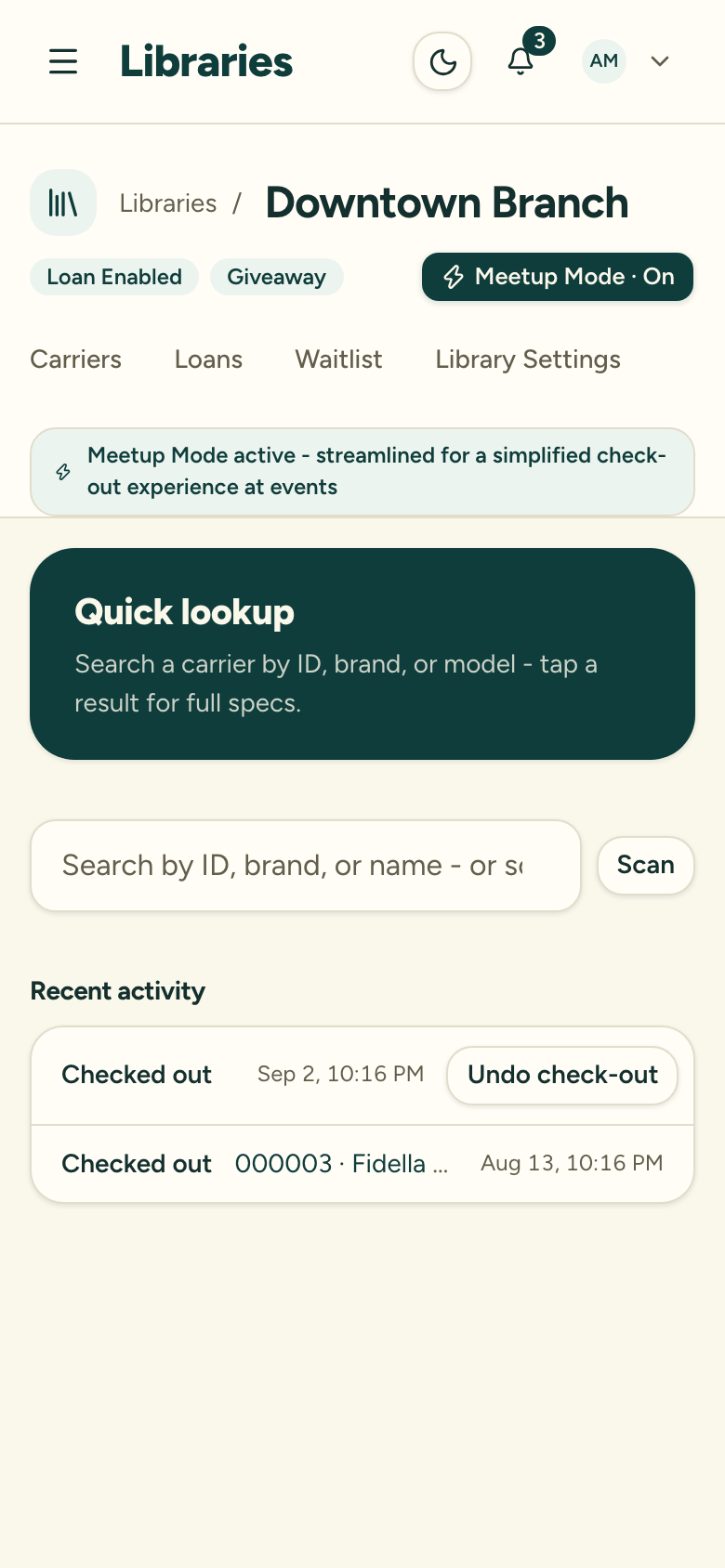
- Compact carrier cards show the photo, carrier ID, status, and name at a glance, with one tap through to full specs — handy for showing a parent the age and weight range.
What it doesn’t change
- Same records, same rules. Loans, caregivers, waivers, and fit checks recorded in Meetup Mode are ordinary records — nothing separate, nothing temporary.
- Every safeguard still applies: the Do Not Lend check at check-out, your role’s permissions, and your plan’s limits all work exactly as normal.
- The 10-minute undo window is the same rule as a normal check-out — Meetup Mode just puts the button where you can see it.
- It’s scoped to your browser tab, so it never changes what your teammates see — and it won’t follow you to a new tab or device either.
Volunteer quick sheet
- Family wants to borrow → search or scan the carrier → Check out.
- New person? Quick-create them — first and last name is enough.
- Need a waiver on file? Record waiver, right in the flow.
- Did a fit check? Record fitting so it’s on their record.
- Carrier comes back → scan or search it → Check in.
- Mistake or a blocked check-out? Undo check-out within 10 minutes, or find a Library Owner.